> For the complete documentation index, see [llms.txt](https://pubscale.gitbook.io/immersive-ads-sdk/llms.txt). Markdown versions of documentation pages are available by appending `.md` to page URLs; this page is available as [Markdown](https://pubscale.gitbook.io/immersive-ads-sdk/integration/scene-setup.md).
# Scene setup
**1. Configure PubScaleManager prefab**
Drag and drop the PubScaleManager prefab from **Assets/PubscaleSDK/Common/Prefabs/PubScaleManager.prefab** in the first scene in your Build Settings.
#### 2. Drag and Drop Native Ad Unit prefab
Drag and drop any of the Native ad unit prefab from the path Assets > PubScaleSDK > NativeAds > Prefabs > AdHolderUnits into your gameplay scene.
{% hint style="info" %}
If using any prefab from the “ScreenSpaceCamera” folder then put it under any Canvas in **Screen Space-Camera** render mode to see ads on it.
{% endhint %}
#### 3. Configuring Default Ad Unit
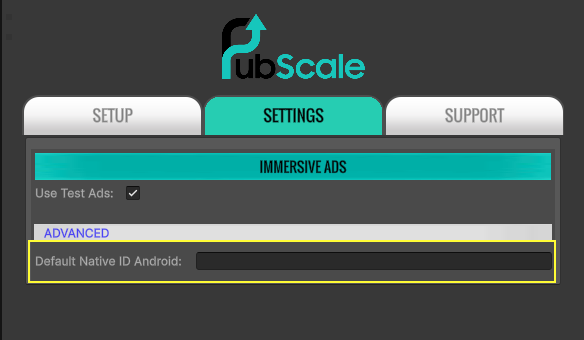
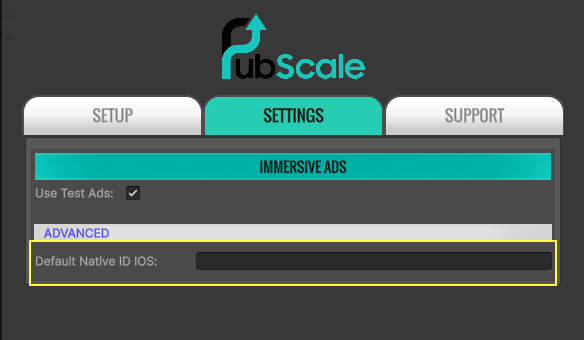
Open the Settings Tab in the PubScale Main Menu found under **Window > PubScale SDK > Main** and Enter the Native Ads settings. Add Native Ad IDs in the Fallback Native ID field.
Android Native ads settings
Adding Native Ad IDs in the Fallback Native ID field will ensure ads are requested in case there is a network delay in receiving the dynamic ad config file from the server.
Android Platform
iOS Platform
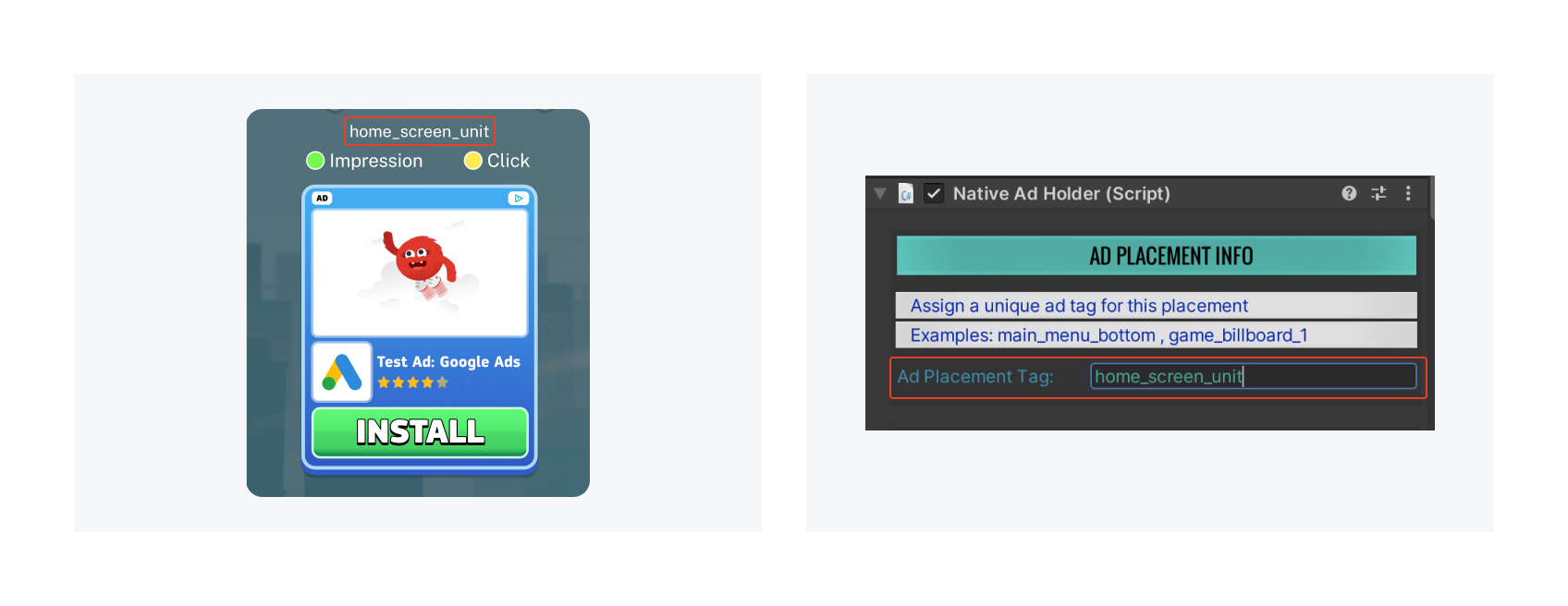
4. **Assign Unique Ad Tag for Ad Units**
Ensure each ad unit has a unique Ad Tag assigned. Example: Home\_Screen\_Unit or level\_fail\_ad\_unit. This allows us to analyze the performance of each ad unit for further optimization.
We have now completed setting up the ads. Let's proceed to the next step to learn how to test the ads.