> For the complete documentation index, see [llms.txt](https://pubscale.gitbook.io/immersive-ads-sdk/llms.txt). Markdown versions of documentation pages are available by appending `.md` to page URLs; this page is available as [Markdown](https://pubscale.gitbook.io/immersive-ads-sdk/v1.4.1/integration/integration-checklist.md).
# Integration Checklist
Double-check your integration with this checklist. These key components will help ensure a seamless Immersive ads SDK integration, minimizing errors before your app goes live.
### Basic Checks:
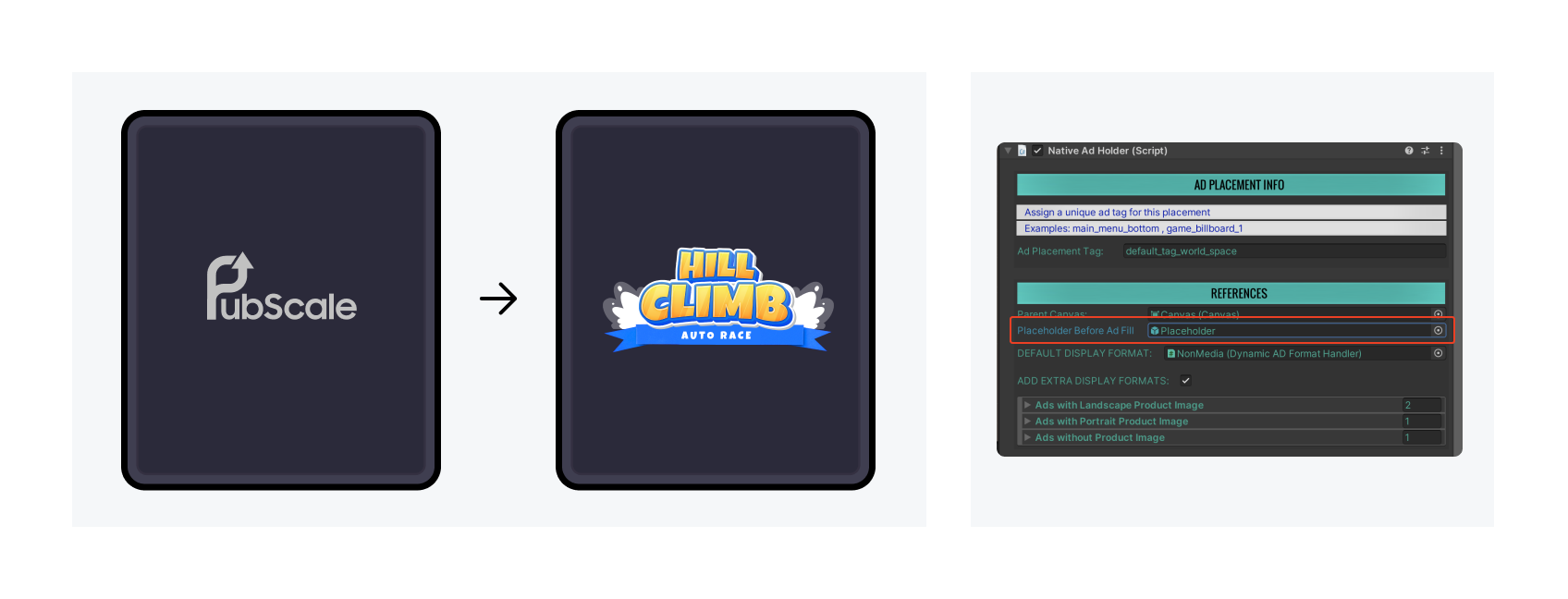
#### 1. **Replace the PubScale Placeholder**
It is important that you replace the PubScale placeholder with your game’s assets, which is displayed when there's no ad available.
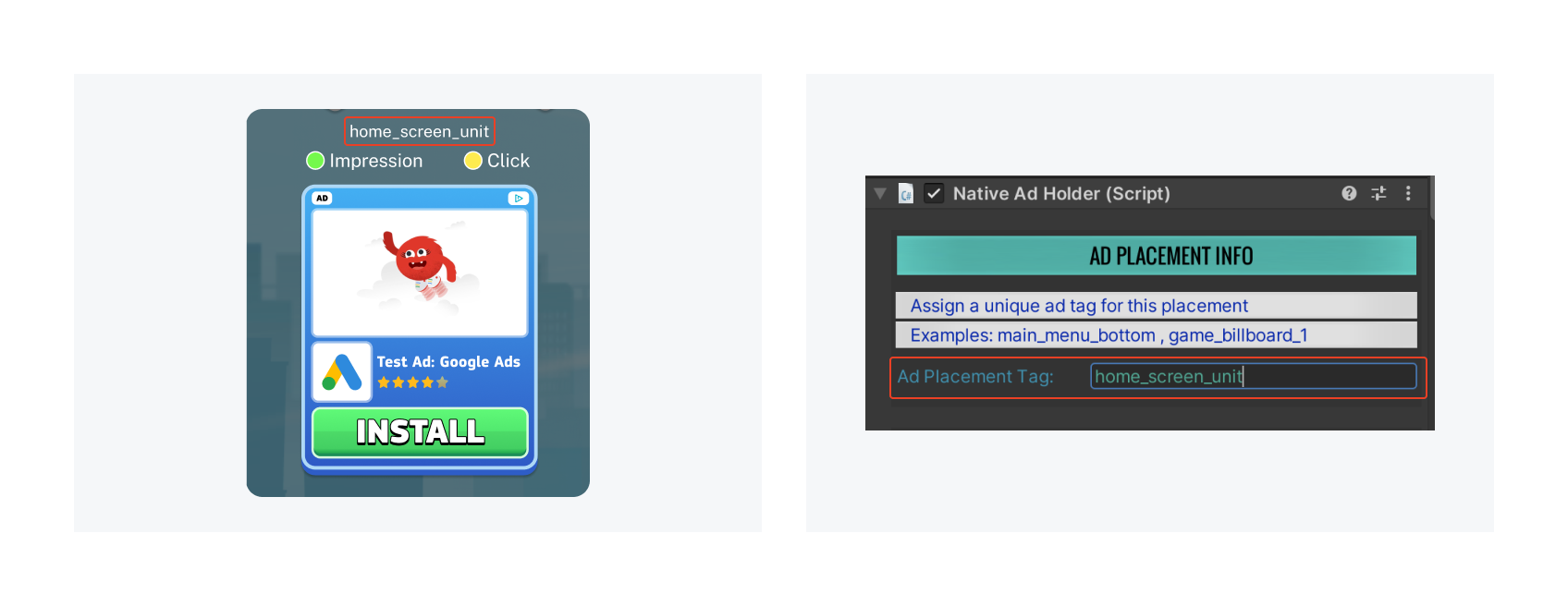
2\. **Assign Unique Ad Tag for Ad Units**
Ensure each ad unit has a unique Ad Tag assigned. Example: Home\_Screen\_Unit or level\_fail\_ad\_unit. This allows us to analyze the performance of each ad unit for further optimization.
***
### Visual Checks:
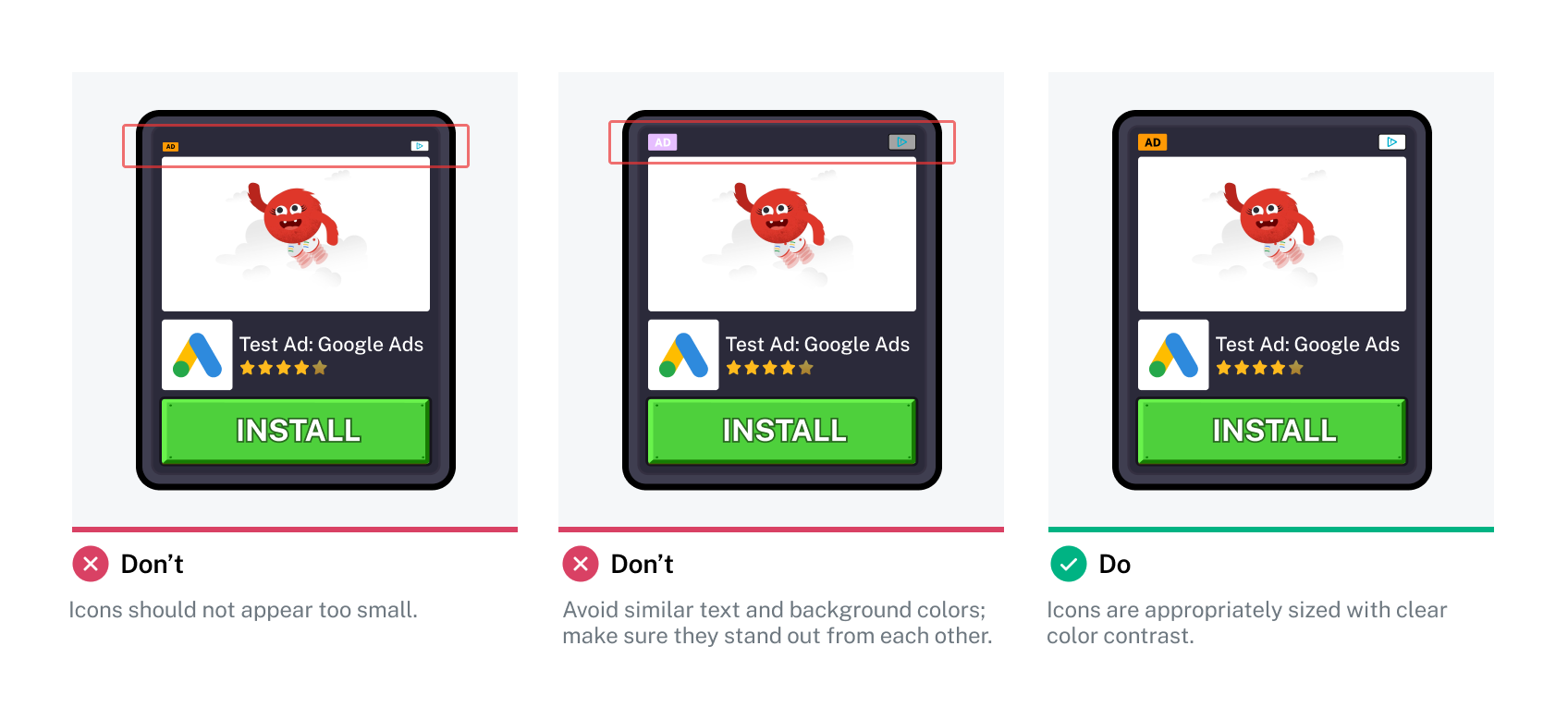
#### 1. **Ad Tag and Ad Choices Icon Size**
Ensure the Ad tag and Ad choices icon are sufficiently large and clearly visible, with distinct colour contrast.
{% hint style="warning" %}
We recommend the Ad Tag and Ad Choices Icon be at least **30x30px**
{% endhint %}
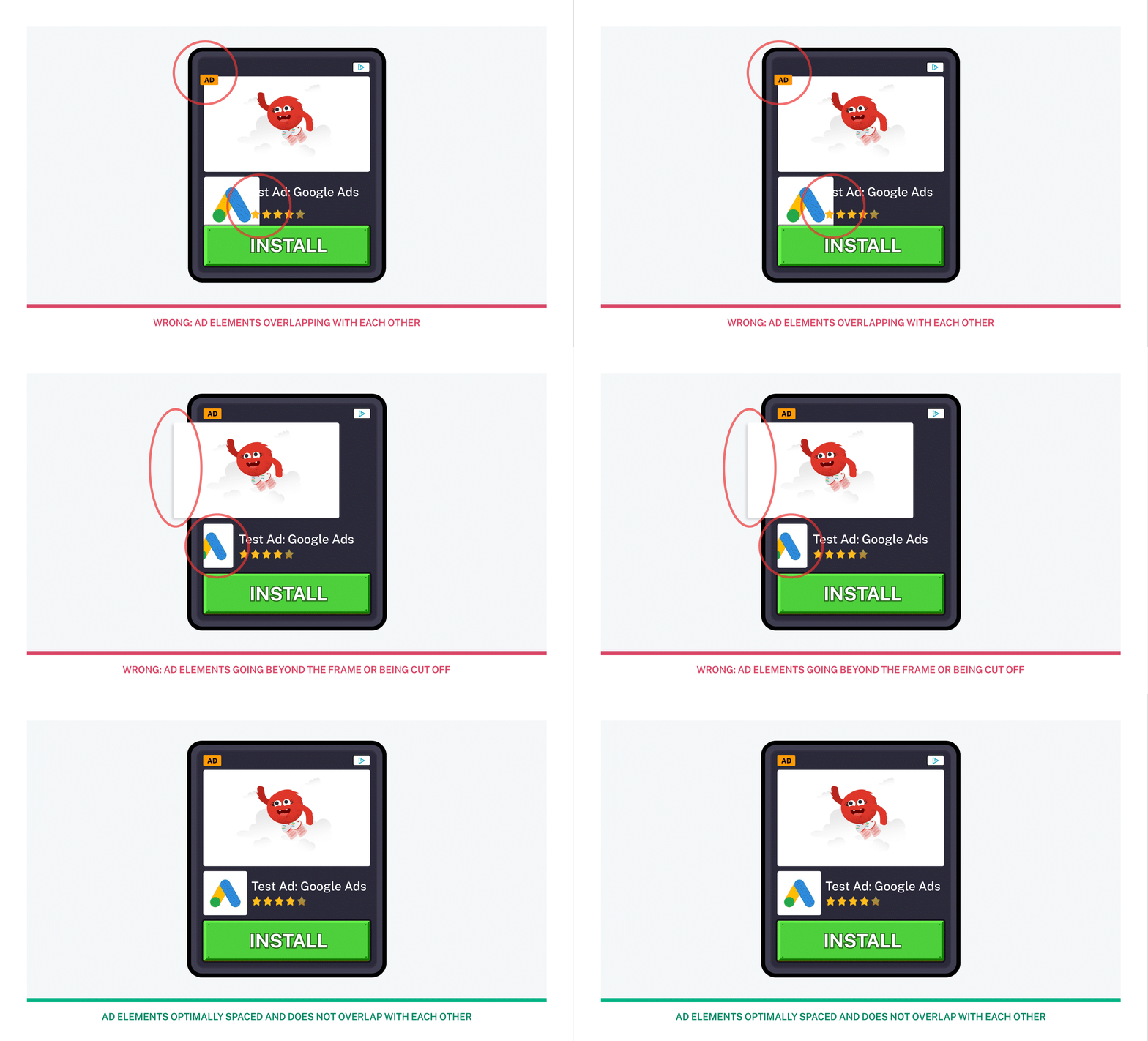
#### 2. **Avoid Overlapping Ad Elements**
Make sure the ad elements(Header, Icon, CTA, BigImage) do not overlap.
{% hint style="info" %}
When adjusting ad size, ensure uniform scaling (equal values for X and Y) to prevent stretching and trimming of ad elements (Big Image, Ad icon, Buttons)
{% endhint %}
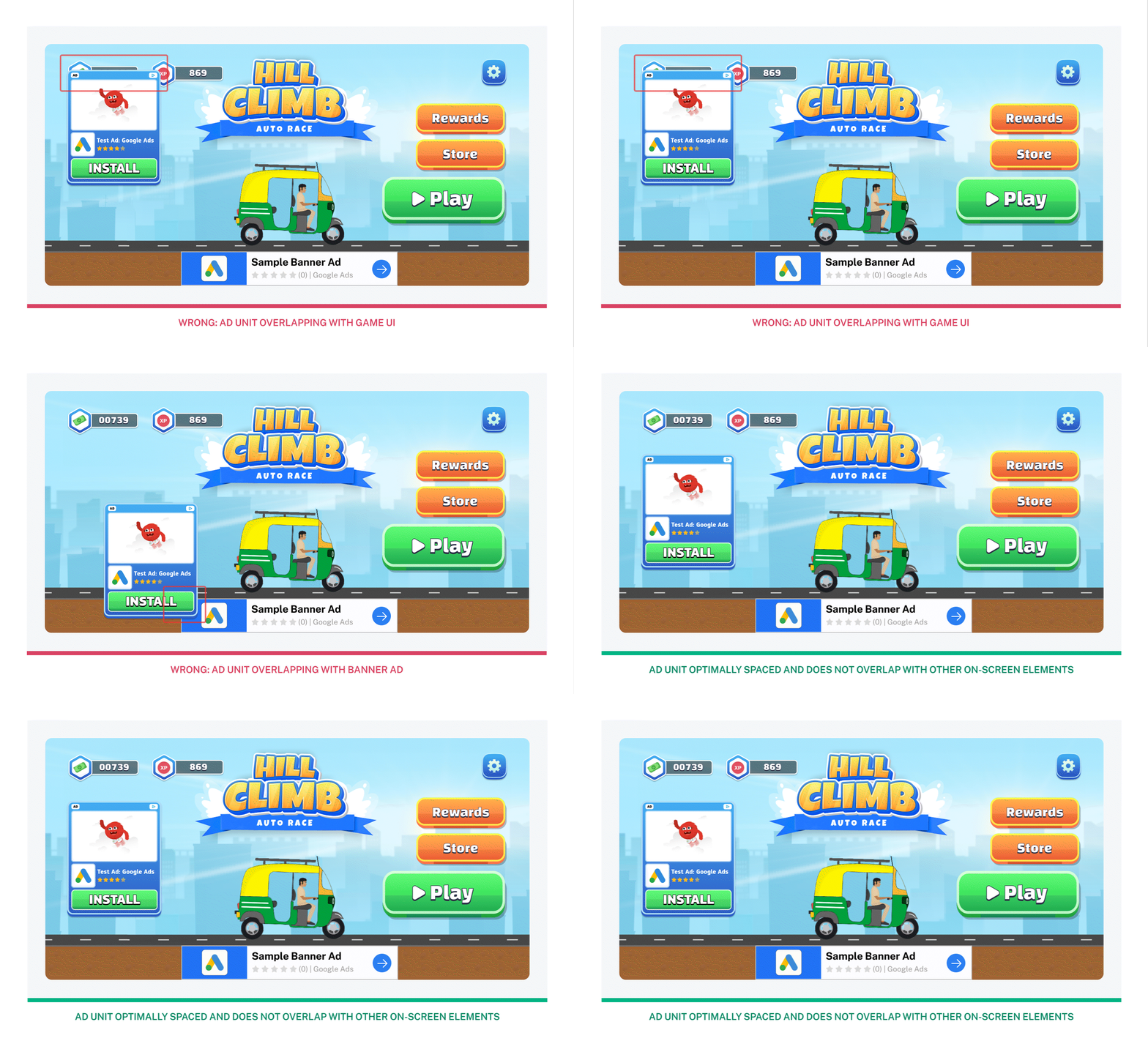
#### 3. **Avoid Ad Unit Overlap with Screen Elements**
Ensure ad units do not overlap with other on-screen elements.
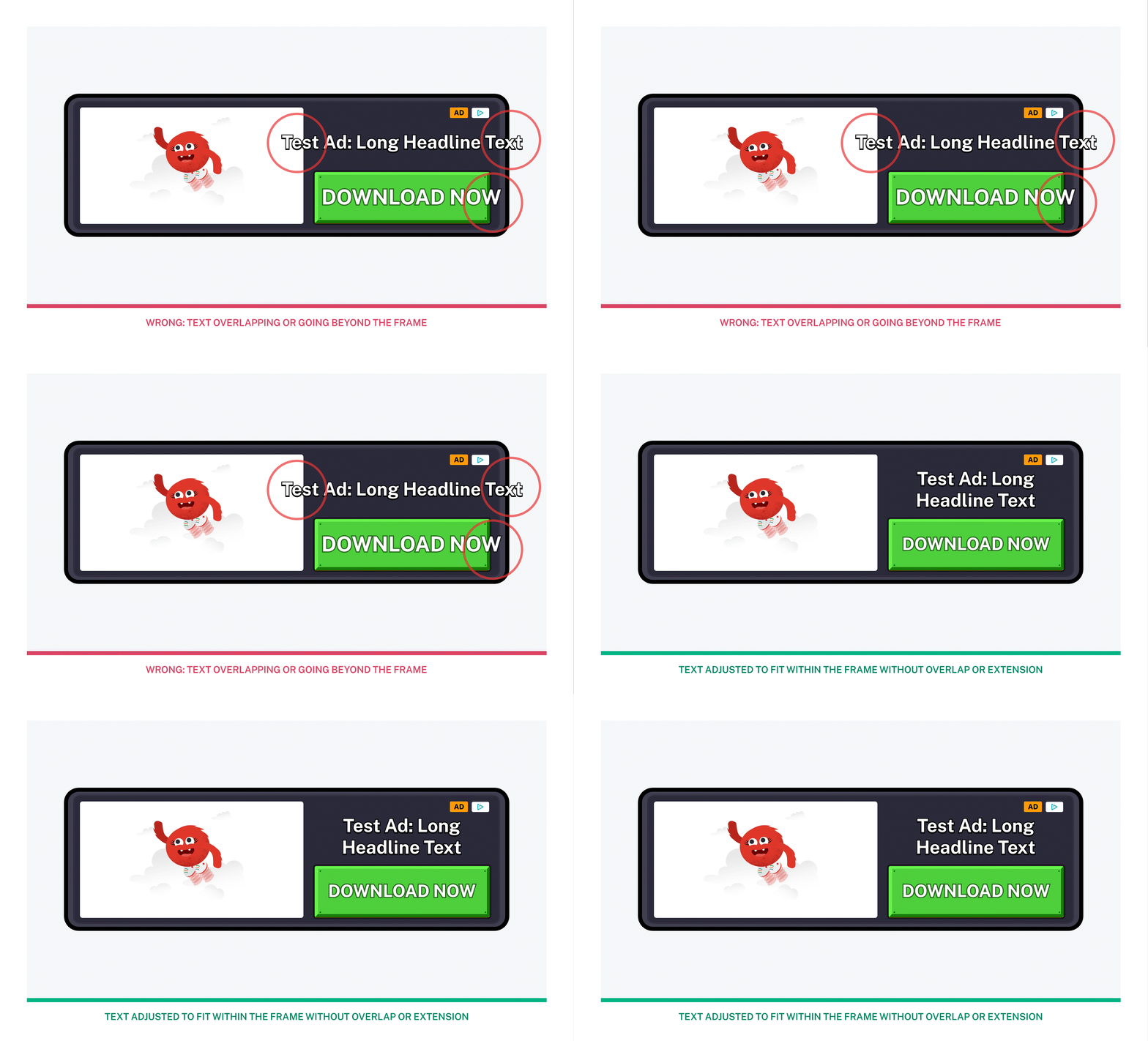
#### 4. **Customize Templates for Longer Text**
Ensure templates are customized to fit longer text without overlap or extending outside the frame.
{% hint style="warning" %}
Headline should be at least 25 characters long, and CTA text should be at least 15 characters long
{% endhint %}
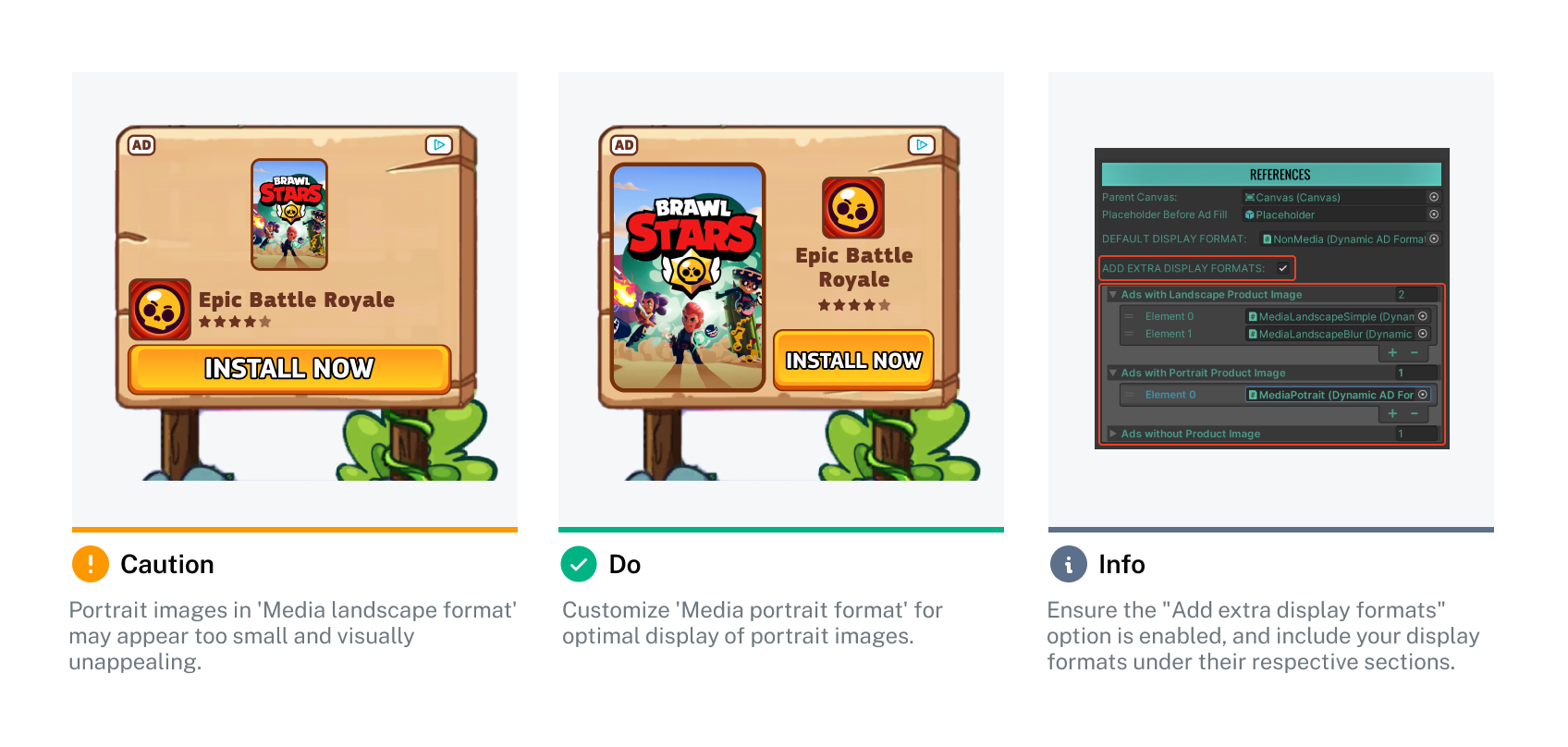
#### 5. **Configure for Landscape and Portrait Images**
Ensure ad units are prepared to display both landscape and portrait images. This can be done by selecting the [suitable Display Template](/immersive-ads-sdk/v1.4.1/presentation/extra-display-templates.md#additional-display-templates) or crafting a [custom Display template](/immersive-ads-sdk/v1.4.1/presentation/extra-display-templates.md#custom-display-templates).
***
### Functional Checks:
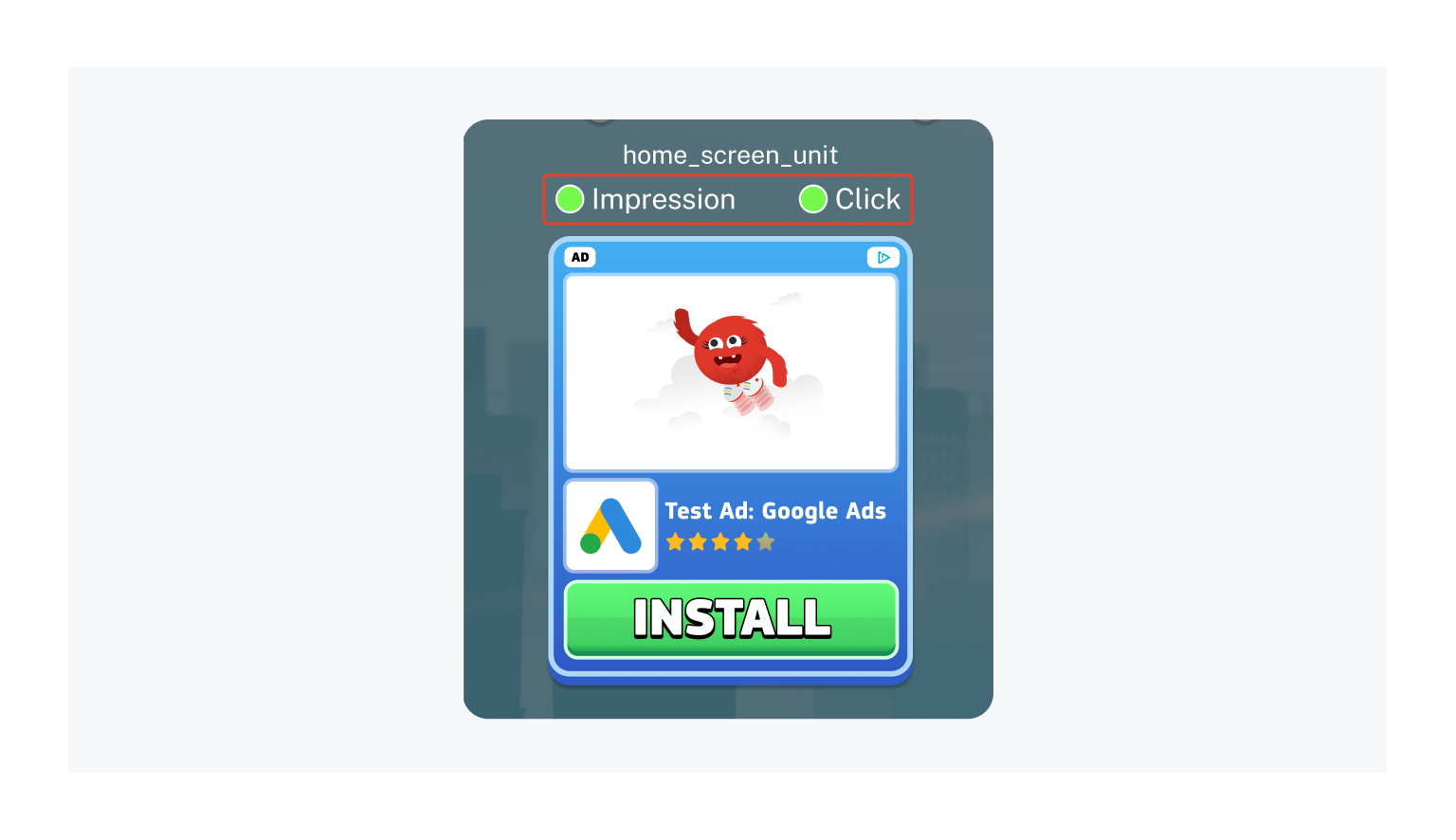
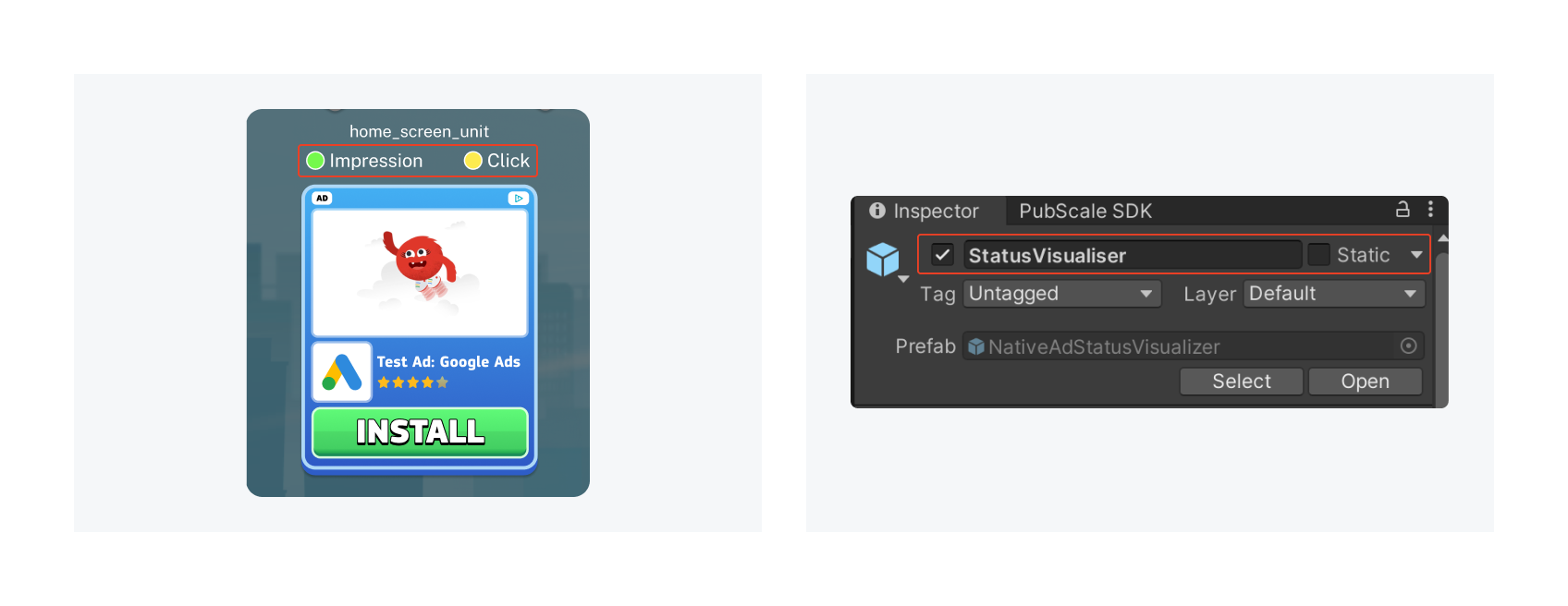
#### 1. **Ensure Impressions and Clicks are registered**
Build the application to an actual device. Verify if the impression indicator turns green when the ad is in the camera view and if the click indicator turns green when you tap on the ad.
{% hint style="info" %}
If the Impression indicator is not green, [find the fix here.](/immersive-ads-sdk/v1.4.1/integration/troubleshoot.md#id-75d19063-242b-486e-b874-ed3aeb011c24)
If the Click indicator is not green, [find the fix here.](/immersive-ads-sdk/v1.4.1/integration/troubleshoot.md#id-87812b65-8d1a-4fe4-adb0-06debb085501)
{% endhint %}
#### 2. **Disable Ad unit During Popups and Overlays**
Ensure that when a popup or overlay appears over an ad unit, the background ad unit is disabled to prevent accidental clicks, avoiding potential policy issues due to high CTR.
{% hint style="info" %}
To disable the ad, call HideAd() on nativeAdHolder, and to enable it again use UnHideAd()
{% endhint %}
{% hint style="warning" %}
Ensure the ad unit is disabled even when it's completely hidden by the overlay.
{% endhint %}
#### 3. **Enable Status Visualizer:**
Before sending a build to our QA for testing, ensure the Status Visualizer is enabled.
{% hint style="info" %}
**You don't need to disable it;** it will be automatically turned off in the live build.
{% endhint %}
#### 4. **Ad Request Management:**
**To Allow Subsequent Ad Requests:**
{% hint style="warning" %}
This is to be done only if your ad is placed on **panels or popups**
{% endhint %}
If your ad is placed on panels or popups, disable AutoFetch() and manually call FetchAd() only when the UI panel or overlay is active.
When fetching an ad manually, include a counter. If it's been over 15 seconds since the last ad impression, fetch a new one; otherwise, keep showing the current ad.
{% hint style="info" %}
Subscribing to Event\_AdLoaded on NativeAdHolder records the last ad load time. This prevents multiple ad requests, especially during frequent panel openings and closings.
{% endhint %}
**Avoid Ad Unit Triggering Multiple Requests:**
To address this issue, ensure that AutoFetch() is disabled whenever FetchAd() is called manually.
**5. Rollout with A/B Test**
If you plan to roll out with an A/B test where ads are shown to some of the users while others don't see them, make sure to follow the steps below:
1. The first step would be to remove the PubScaleManager prefab from the first scene
2. Once a response is received from the A/B test service (such as Firebase Remote config)
1. If the user is to be shown ads, you can instantiate PubScaleManager like any GameObject or it can also be loaded from the Resources folder
2. Once the PubScaleManager is instantiated, it will begin Caching Ads
3. In addition to the above, the default state of all Native ad Game Objects needs to be Disabled. Otherwise, when the native ad object requests an ad, the PubScaleManager will get dynamically instantiated (lazy loaded) and begin caching ads.
The main goal is to prevent the PubScaleManager from being loaded for users who are not supposed to see ads. If active, it will cache ads which will not get shown impacting Show Rate negatively driving down ecpm.
Doing the above steps (2) and (3) ensures the A/B test happens correctly.
### Memory Management
* The downloaded ad textures build up in memory and may need manual handling in certain cases.
* The accumulated textures are cleared when a scene change or reload happens. However, in the following cases, you should manually manage texture memory
* Single scene setup
* Long-running gameplay scene
* Gameplay Restart/ Progression happens without any scene reload or change
* Destroying texture assets is an expensive operation. The SDK avoids doing so during gameplay as what would be a good time for the SDK could be bad timing for the game and lead to a framerate drop at a critical point
* You can manually invoke Resource.UnloadUnusedAssets() at a strategic point when the gameplay is not demanding to free up the texture memory
* If you don't want to use Unity's UnloadUnusedAssets API, you can handle the textures at the level of each NativeAdHolder.
* Here is a script that can be used as is or modified to suit your needs
```csharp
using UnityEngine;
using GoogleMobileAds.Api;
using PubScale.SdkOne.NativeAds;
using PubScale.SdkOne;
public class NativeTextureReferences : MonoBehaviour
{
[SerializeField] NativeAdHolder nativeAdHolder;
Texture2D prevLoadedAdIconTex = null;
Texture2D prevLoadedBigImgTex = null;
Texture2D prevLoadedAdChoicesTex = null;
NativeAdDisplayHandler curDisplayHandler;
void Start()
{
if (nativeAdHolder != null)
{
ClearDummyAdSprites(nativeAdHolder);
nativeAdHolder.Event_AdRequest += OnNewNativeAdRequested;
nativeAdHolder.Event_AdLoaded += OnNativeAdLoaded;
}
else
Debug.LogWarning("PubScaleSDK: Please assign a nativeAdHolder in NativeTextureReferences");
}
private void OnNewNativeAdRequested()
{
if (nativeAdHolder != null && nativeAdHolder.adDisplay != null)
{
curDisplayHandler = nativeAdHolder.adDisplay;
if (curDisplayHandler != null)
{
// Ad Icon
if (curDisplayHandler.adIconImg != null && curDisplayHandler.adIconImg.sprite != null)
{
if (curDisplayHandler.adIconImg.sprite.texture != null)
prevLoadedAdIconTex = curDisplayHandler.adIconImg.sprite.texture;
}
// Big Image
if (curDisplayHandler.imageTextures != null && curDisplayHandler.imageTextures.sprite != null)
{
if (curDisplayHandler.imageTextures.sprite.texture != null)
prevLoadedBigImgTex = curDisplayHandler.imageTextures.sprite.texture;
}
// Ad Choices
if (curDisplayHandler.adChoicesImg != null && curDisplayHandler.adChoicesImg.sprite != null)
{
if (curDisplayHandler.adChoicesImg.sprite.texture != null)
prevLoadedAdChoicesTex = curDisplayHandler.adChoicesImg.sprite.texture;
}
}
}
}
private void OnNativeAdLoaded(object arg1, NativeAdEventArgs args)
{
if (prevLoadedAdIconTex != null)
{
Texture2D tempIconTex = prevLoadedAdIconTex;
prevLoadedAdIconTex = null;
Destroy(tempIconTex); // You can destroy or add to list and Destroy in batch at a convenient point in gameplay
}
if (prevLoadedBigImgTex != null)
{
Texture2D tempBigImgTex = prevLoadedBigImgTex;
prevLoadedBigImgTex = null;
Destroy(tempBigImgTex); // You can destroy or add to list and Destroy in batch at a convenient point in gameplay
}
if (prevLoadedAdChoicesTex != null)
{
Texture2D tempAdChoicesTex = prevLoadedAdChoicesTex;
prevLoadedAdChoicesTex = null;
Destroy(tempAdChoicesTex); // same as above
}
}
void ClearDummyAdSprites(NativeAdHolder natAdHolder)
{
curDisplayHandler = nativeAdHolder.adDisplay;
RemoveDefaultTextureReferences(curDisplayHandler);
if (natAdHolder.UseExtraFormats)
{
if (natAdHolder.landscapeAdFormats != null && natAdHolder.landscapeAdFormats.Length > 0)
{
foreach (NativeAdDisplayHandler displayHandler in natAdHolder.landscapeAdFormats)
RemoveDefaultTextureReferences(displayHandler);
}
if (natAdHolder.potraitAdFormats != null && natAdHolder.potraitAdFormats.Length > 0)
{
foreach (NativeAdDisplayHandler displayHandler in natAdHolder.potraitAdFormats)
RemoveDefaultTextureReferences(displayHandler);
}
if (natAdHolder.nonMediaType != null && natAdHolder.nonMediaType.Length > 0)
{
foreach (NativeAdDisplayHandler displayHandler in natAdHolder.nonMediaType)
RemoveDefaultTextureReferences(displayHandler);
}
}
}
void RemoveDefaultTextureReferences(NativeAdDisplayHandler curDisplayHanlder)
{
// Dummy Ad Logo Image
if (curDisplayHanlder.adIconImg != null)
ClearImageSprite(curDisplayHanlder.adIconImg);
// Dummy Big Image
if (curDisplayHanlder.imageTextures != null)
ClearImageSprite(curDisplayHanlder.imageTextures);
// Dummy Ad Choices Icon image
if (curDisplayHanlder.adChoicesImg != null)
ClearImageSprite(curDisplayHanlder.adChoicesImg);
}
void ClearImageSprite(UnityEngine.UI.Image img)
{
if (img != null && img.sprite != null)
img.sprite = null;
}
}
```
### ***What if the display template does not use the icon or big image?***
Does not use Big Image. Displays only the ad icon.
Does not use Ad Icon. Displays only the Big Image.
* For display templates that show a subset of the ad media:
* Do not delete the unused media game object and keep its reference and settings in the DisplayHandler script as it is. No change is required.
* Uncheck it's Image component (but let it remain on the game object)
* Make adjustments to ensure it does not overlap any displayed ad elements
* When the ad loads, the ad icon and big media are loaded into memory (even if not shown). As in the script above you can get the reference to the texture and destroy at a convenient point in the game flow when the intensity is low.