# Extra Display Templates
### USING A SINGLE DISPLAY TEMPLATE
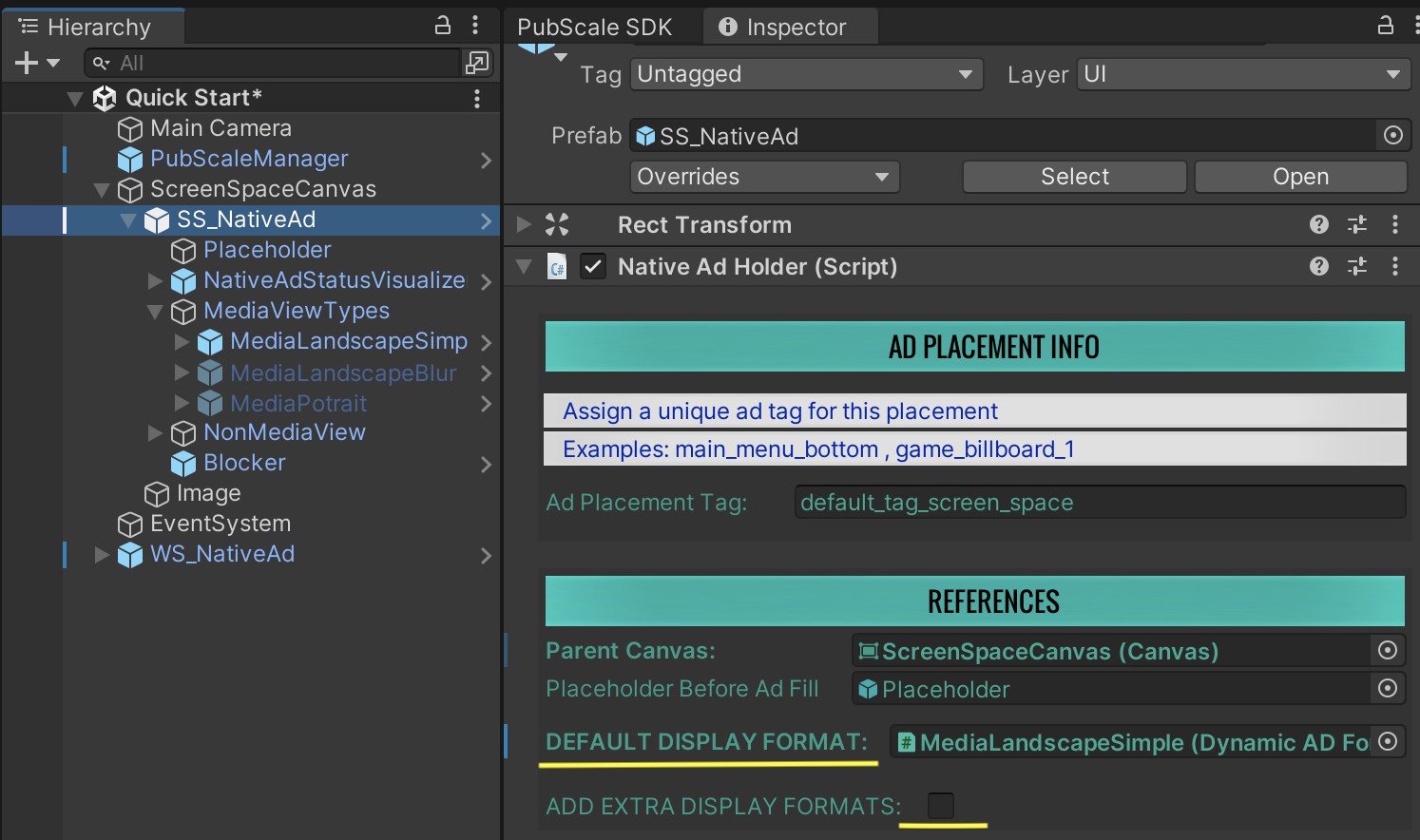
To use a single display template (for instance MediaLandscapeSimple), do the following in the NativeAdHolder component.
1. Assign MediaLandscapeSimple to the DEFAULT DISPLAY FORMAT field
2. Uncheck the ADD EXTRA DISPLAY FORMATS field
***
### ADDITIONAL DISPLAY TEMPLATES
The Display Handler Templates used in the default Ad Prefabs are:
1. MediaLandscapeSimple
2. MediaLandscapeBlur
3. MediaPotrait
4. NonMedia
In addition to the above display handlers, the SDK provides the following additional templates:
1. LongHorizontalSimple
2. LongHorizontalSimple2
3. LongVerticalSimple
4. TemplateCombo1
1. Combo1 Landscape
2. Combo1 Portrait
5. TemplateCombo2
1. Combo2 Landscape
2. Combo2 Portrait
6. TemplateCombo3
1. Combo3 Landscape
2. Combo3 Portrait
These can be found in the path:
Assets/PubscaleSDK/NativeAds/Prefabs/DisplayTemplates/Dynamic/
TO USE THESE FORMATS:
1. Drag and drop the Display Template as a child to the SS\_NativeAd or (WS\_NativeAd > Canvas) object
2. If using a Single Template, follow the steps from the section above
3. If using multiple templates
1. Make sure the ADD EXTRA DISPLAY FORMATS is checked
2. Remove any display templates that you don't want to use from the Display options array
3. Add the new display templates to the array for the SDK to pick at runtime depending on the Ad big media aspect ratio
4. Assign the Default Display Template
5. Make sure the Status Visualizer is visible!
***
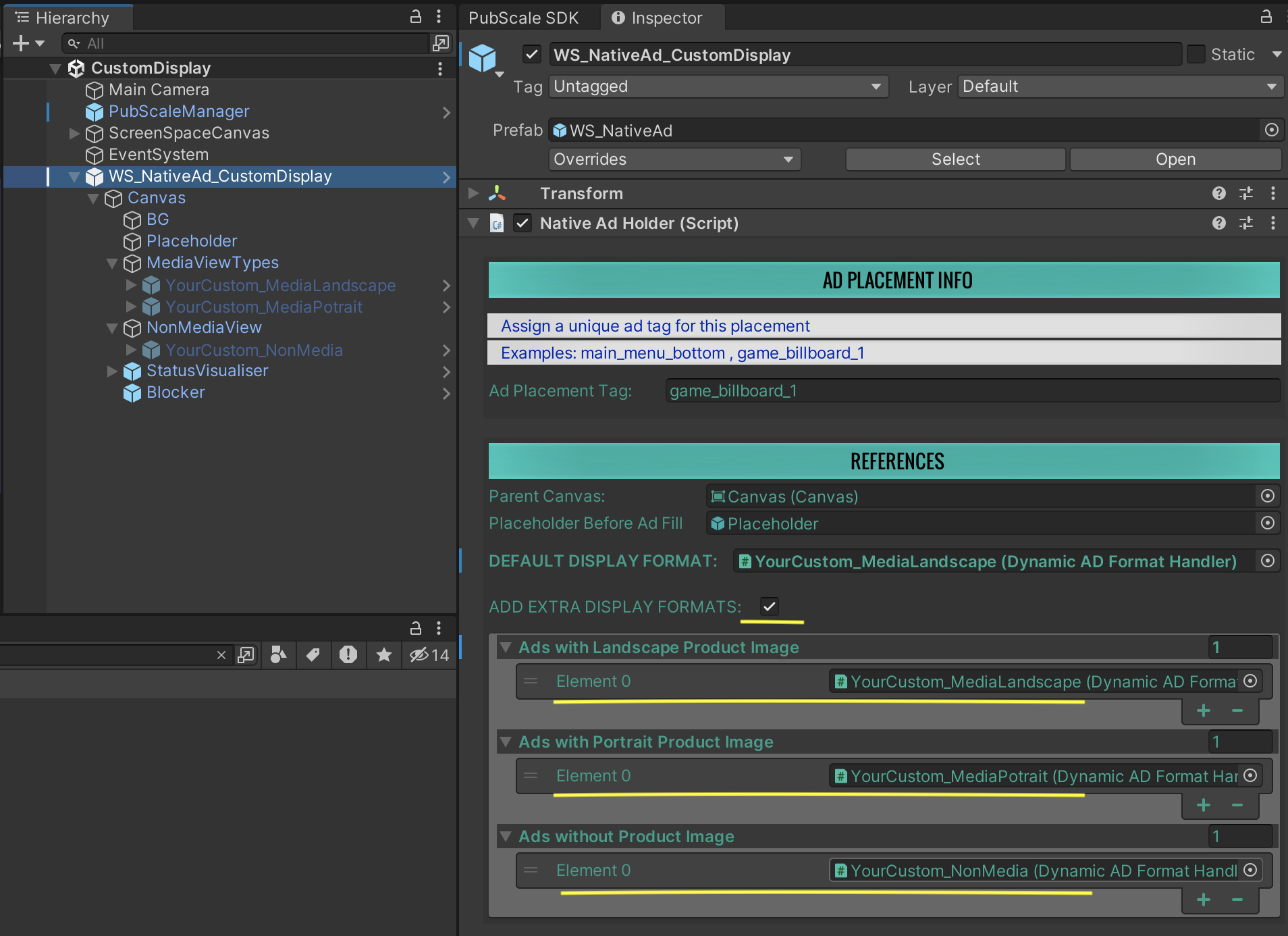
### CUSTOM DISPLAY TEMPLATES (MAKE YOU OWN TEMPLATE)
* If you create your own Custom Display Template, make sure to create a variant for portrait big image media as well.
* This will ensure the Ad unit looks good when the ad's big image media is in Portrait aspect ratio.
* In this case, you have to add your custom display variants to the Display Options array as shown in the steps below
1. Set **ADD EXTRA DISPLAY FORMATS** field to Enabled
2. Remove any default display templates that you don't want to use from Display options array
3. Add your Custom display templates to the array for the SDK to pick at runtime depending on the Ad big media aspect ratio
4. Make sure the Status Visualizer is visible
5. Done!
Custom Display Templates
###
---
# Agent Instructions: Querying This Documentation
If you need additional information that is not directly available in this page, you can query the documentation dynamically by asking a question.
Perform an HTTP GET request on the current page URL with the `ask` query parameter:
```
GET https://pubscale.gitbook.io/immersive-ads-sdk/v1.4.1/presentation/extra-display-templates.md?ask=
```
The question should be specific, self-contained, and written in natural language.
The response will contain a direct answer to the question and relevant excerpts and sources from the documentation.
Use this mechanism when the answer is not explicitly present in the current page, you need clarification or additional context, or you want to retrieve related documentation sections.