# Unity
{% hint style="warning" %}
**Before you start**
To set up the PubScale Offerwall, you’ll need to add your app to our platform. Follow this guide for instructions on [how to set up your app](https://pubscale.gitbook.io/offerwall-sdk/1.0.10/basic-integration/setting-up-your-app). Once completed, you will receive a unique 8-digit app ID.
{% endhint %}
## [✅ ](https://www.alt-codes.net/check-mark-symbols.php)Preintegration checks
* Make sure you are using Unity version 2019.4.0f1 or above
* Ensure your application builds without any errors before adding the plugin.
* Android platform is selected for your Unity project.
* The Editor must support Android Gradle version 4.0.1 or above.
## **1. Add the OfferWall Unity plugin to your Unity project**
[Download](https://github.com/GreedyGame/unity-offer_wall_plugin/releases/latest) and import the latest version of OfferWall Unity Plugin from GitHub.
## **2. Configuring Publishing Settings**
* Set the minimum API level to 24 or above and the target API level to 33 or above under Edit/ProjectSettings/Player/Other Settings
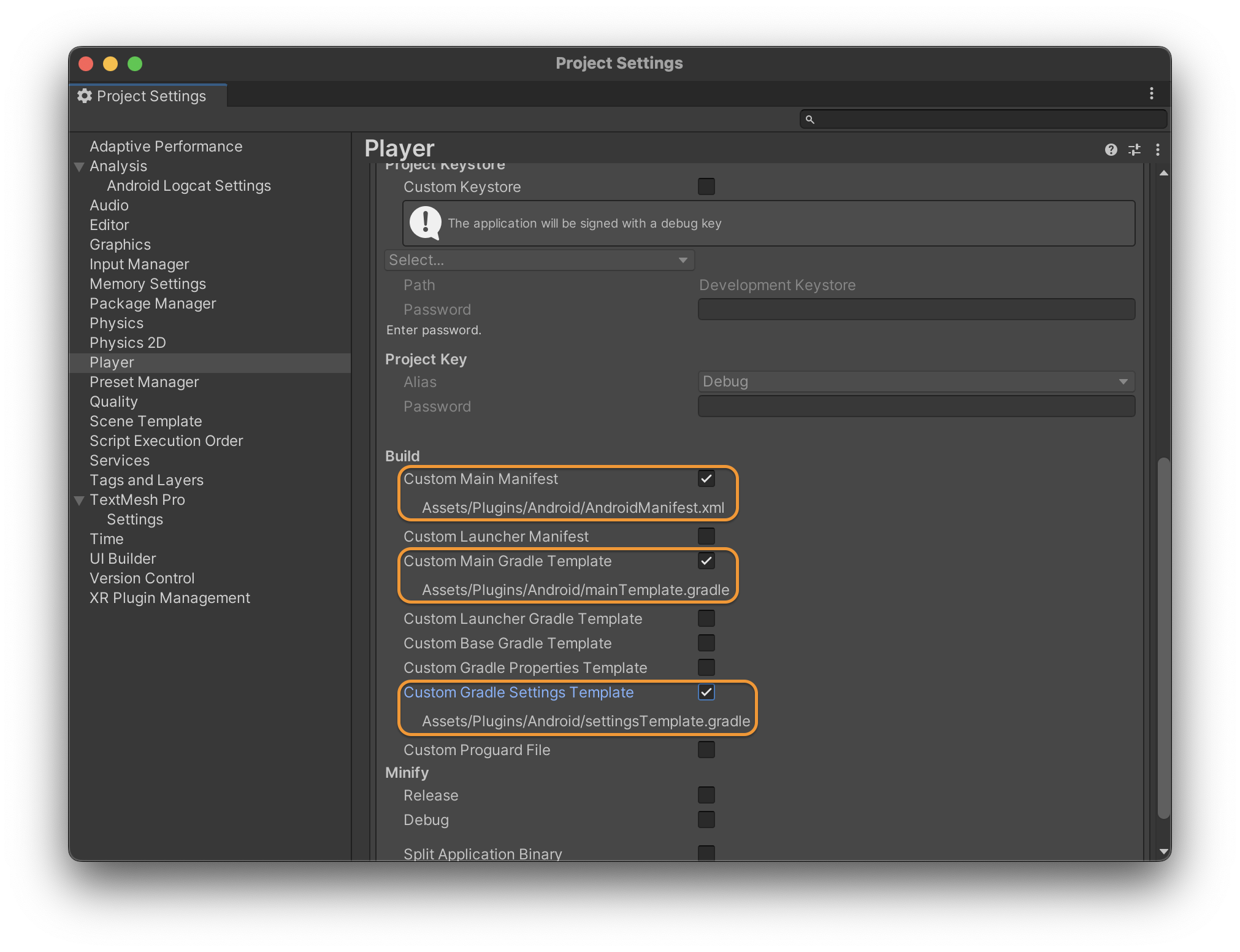
* Make sure you check the below-mentioned checkboxes under Edit/ProjectSettings/Player/Publishing Settings.
* **Custom Main Manifest**
* **Custom Main Gradle Template**
* **Custom Gradle Settings Template**
Player > Publishing settings
## **3. Configuring dependencies**
Adding `mavenCentral()` as a repository in `settingsTemplate.gradle`
```groovy
pluginManagement {
repositories {
**ARTIFACTORYREPOSITORY**
gradlePluginPortal()
google()
}
}
include ':launcher', ':unityLibrary'
**INCLUDES**
dependencyResolutionManagement {
repositoriesMode.set(RepositoriesMode.PREFER_SETTINGS)
repositories {
**ARTIFACTORYREPOSITORY**
google()
mavenCentral() //<----------------Add this line
flatDir {
dirs "${project(':unityLibrary').projectDir}/libs"
}
}
}
```
Add the below line inside the dependencies block in your mainTemplate.gradle file
```groovy
implementation 'com.pubscale.sdkone:offerwall:1.0.10'
```
## **4. Force resolve dependencies**
**Force resolve** forces the Package Manager to resolve the project’s packages, reinstalling any altered or missing package and removing extraneous packages.
To Force resolve the dependencies, Goto Assets > External Dependency Manager > Android Resolver > Force Resolve (if the resolver did not open automatically)
{% hint style="info" %}
OfferWall does not work in the Editor. Please use a real device to test the integration.
{% endhint %}
## 5. Configuring Prefabs
#### **Drag and Drop** PubScaleOfferwallObject **prefab**
Drag and drop the **PubScaleOfferwallObject prefab** from Assets/OfferWall/Prefab/PubScaleOfferwallObject.prefab in the scene.
## 6. Configuring App Key
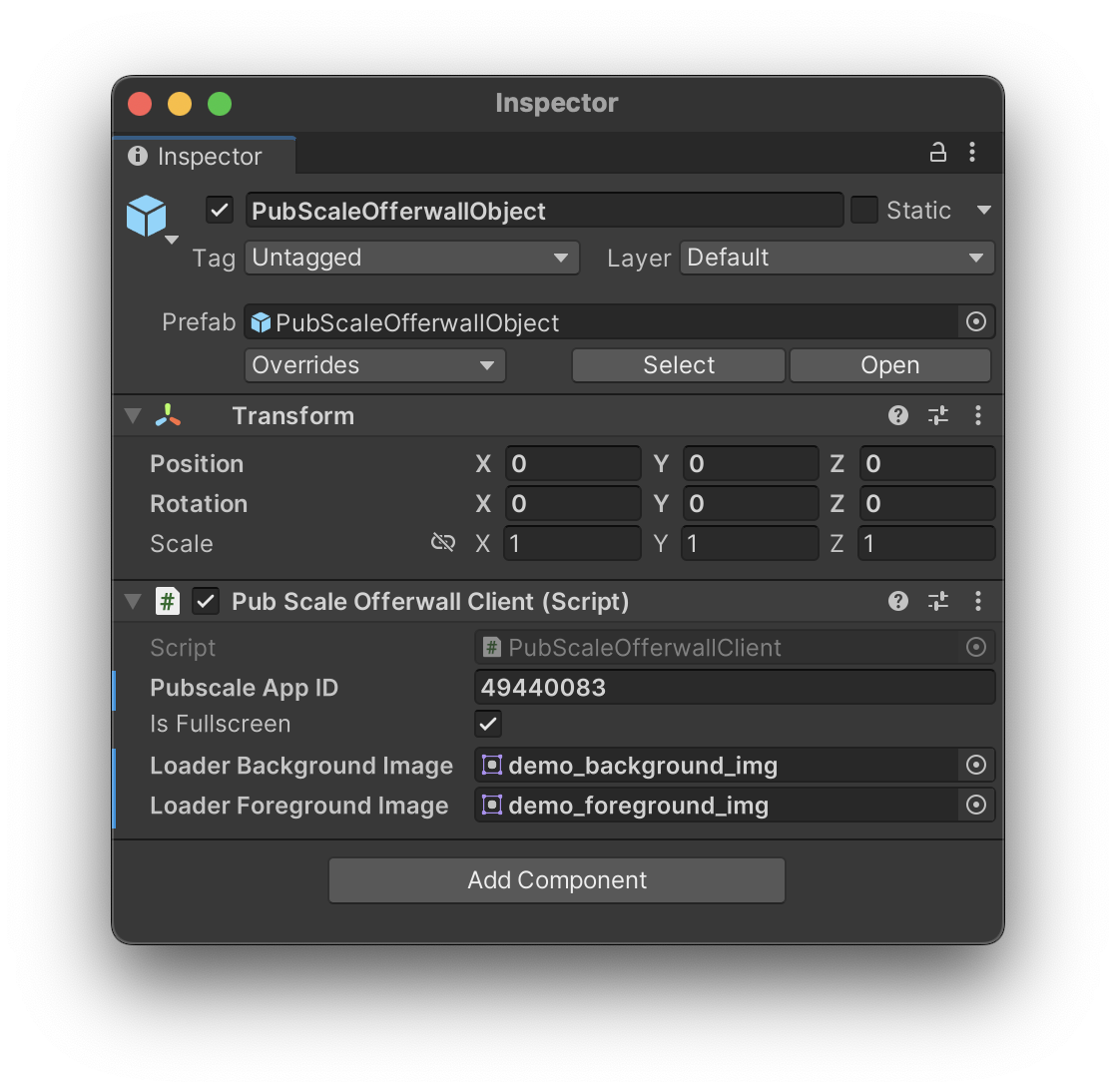
Enter your PubScale app ID inside the "Pubscale App ID" field located on the PubScaleOfferwallObject.
Offerwall Prefab
{% hint style="info" %}
The PubScale App ID is an 8-digit identifier generated during the app creation process within the dashboard. If you need help creating an account/app with us, [click here](https://pubscale.gitbook.io/offerwall-sdk/1.0.10/basic-integration/setting-up-your-app).
{% endhint %}
## 7. Initialize the SDK
To launch the OfferWall, call the PubScaleOfferwallClient.Initialize(string userId) function using the instance from PubScaleOfferwallObject prefab.
PubScaleOfferwallClient myScriptInstance = GetComponent<PubScaleOfferwallClient>();
// Check if the script instance is not null
if (myScriptInstance != null)
{
    myScriptInstance.InitOfferWall(userId);
}
{% hint style="info" %}
Expected params:
1. userID: A string value that is used to identify the user uniquely in your application. If this value is null, the SDK would internally create a userId for the device.
{% endhint %}
## 8. Custom loader background image and foreground image
#### **Step 1: Custom loader background and loader foreground**
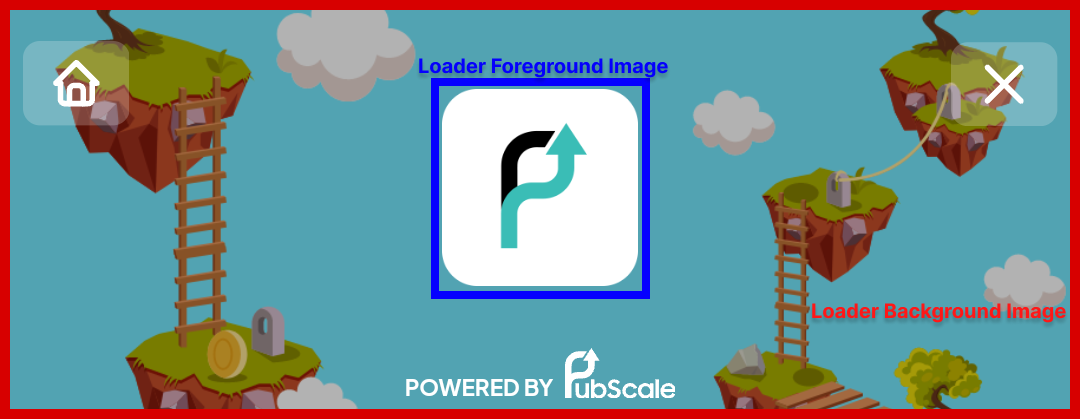
To use custom background and foreground images for the loading screen replace the **demo\_background\_img and demo\_foreground\_img** file located under Assets/OfferWall/Resources with the image you need.
#### **Step 2: Enable Read and Write under Advance Image settings**
Press the preset button on your imported image and then select the OfferWallTextureImporter preset from the menu and click apply.
{% hint style="info" %}
If the fields are left empty, the default values will be used:
* Background: Black image
* Foreground: App icon
{% endhint %}
## 9. Set Offerwall Orientation
By default, the Offerwall opens in Portrait orientation. If you want to change this behaviour, do the following changes.
Add the below line inside the \\ tag in your AndroidManifest.xml file.
```xml
```
## 10. Handling the SDK callbacks (optional)
To handle the SDK callbacks, subscribe to the events that are made available by the SimpleIntegration script.
```csharp
//Define functions that would be called when the callbacks are given
void OnSDKInitSuccess() {
}
void OnSDKInitFailed(string message) {
}
void OnOfferwallShowed() {
}
void OnOfferwallClosed() {
}
void OnRewardClaimed(Reward reward) {
}
void OnOfferwallFailed(string message) {
}
//Subscribe to the events
PubScaleOfferwallClient.OnSDKInitSuccess += OnSDKInitSuccess;
PubScaleOfferwallClient.OnSDKInitFailed += OnSDKInitFailed;
PubScaleOfferwallClient.OnOfferwallShowed += OnOfferwallShowed;
PubScaleOfferwallClient.OnOfferwallClosed += OnOfferwallClosed;
PubScaleOfferwallClient.OnRewardClaimed += OnRewardClaimed;
PubScaleOfferwallClient.OnOfferwallFailed += OnOfferwallFailed;
```
## 11. Launch the OfferWall
To launch the OfferWall, call the AdvancedIntegration.ShowOfferWall() function using the PubScaleOfferwallAdvanced prefab.
```
PubScaleOfferwallClient myScriptInstance = GetComponent();
// Check if the script instance is not null
if (myScriptInstance != null)
{
myScriptInstance.ShowOfferWall();
}
```
Can also be used in onClick of a button:
Example usage: Launching Offerwall on click of a button
## 11. Setup S2S callbacks
Setup the S2S callbacks to get instant updates whenever the user gets the reward. You can use this callback to reward the user in your application. [Learn more.](https://pubscale.gitbook.io/offerwall-sdk/1.0.10/s2s-callback-configuration)
## 12. Test the OfferWall
{% hint style="info" %}
Please use the sandbox environment for testing purposes to get instant callbacks and rewards. To learn how to enable the Sandbox environment, [click here](https://pubscale.gitbook.io/offerwall-sdk/1.0.10/sandbox-environment/sandbox-environment).
{% endhint %}
Finally, To test the offerwall, build the application to an actual device. Check if you can launch the Offerwall and get the appropriate callbacks.