# Adding the SDK
#### 1. Add the Google Mobile Ads plugin to your project
[Download](https://github.com/googleads/googleads-mobile-unity/releases/tag/v9.6.0) and import the **Google Mobile Ads plugin**\
Note: The SDK supports Ad Mob version v9.0.0 upwards to v9.6.0
**2. Add PubScale Immersive Ads plugin to your project**
[Download](https://github.com/GreedyGame/immersive-ads-unity/releases/tag/v1.4.3) and import the latest version of the **Immersive Ads plugin.**
{% hint style="warning" %}
It is recommended to use Unity 2021 LTS or above. But, if you use Unity Editor 2019 or 2020, change the **API compatibility Level** to **.NET 4x**.
This can be found under **Player Settings/Other Settings/Configuration**
 {% endhint %}
#### 3. Force resolve dependencies
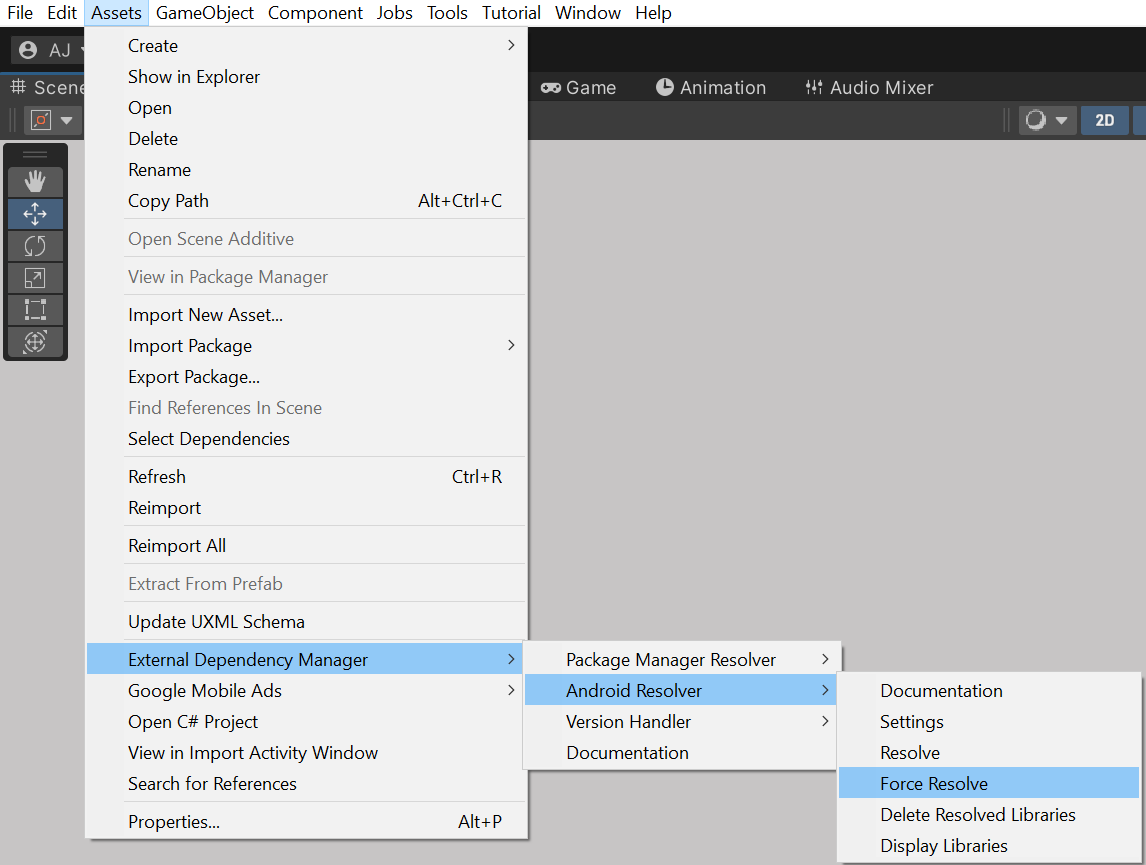
Force resolve the dependencies from **Assets/External Dependency Manager/Android Resolver/Force Resolve** if the resolver did not open automatically.
{% endhint %}
#### 3. Force resolve dependencies
Force resolve the dependencies from **Assets/External Dependency Manager/Android Resolver/Force Resolve** if the resolver did not open automatically.
 We have added the SDK to the project. Learn how to link the app in the next step.